Import a photo sent in email

You can import photos that you’ve received in an email message directly into iPhoto.

Import a photo from Apple’s Mail application

  1. Open the email message to view the photo.

  2. Do one of the following:

    • Drag the photo from the email message to the main iPhoto window.

    • Click and hold Save in the message header, then choose “Add to iPhoto” from the pop-up menu that appears.
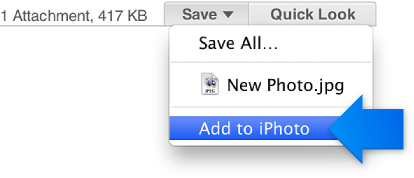
      Image of the Add to Photo item in the Save pop-up menu

Import a photo from another email application

  1. Open the email message to view the photo.

  2. Save the photo to your computer’s hard disk (try pressing the Control key while you click the photo and see if a Save As command is listed in the shortcut menu).

  3. Open iPhoto, and then choose File > “Import to Library.”

  4. In the Import Photos window that appears, locate the photo you want to import, and then click Import.

Import a photo from your webmail account, including iCloud, Google Gmail, Yahoo! Mail, or Microsoft Hotmail webmail accounts

  1. Open the email message to view the photo.

  2. Do one of the following:

    • If you’re using the Safari Internet browser, press the Control key while you click the image in the email message, and then choose “Add Image to iPhoto Library.”

    • If you’re using another Internet browser, press the Control key while you click the image in the email message, and then choose a save option from the shortcut menu.

      Depending on the Internet browser you’re using, you may have to follow additional onscreen instructions.

      After you save the photo to a location on your hard disk, you can import the photo to your iPhoto library.