
Trim a video clip
Do one of the following:
Double-click the video clip.
Select the video clip, and then press the Space bar.
Play the movie until you reach the point at which you want to insert a cut.
You can drag the slider at the bottom of the movie controls panel (shown below) to go to a specific point in the movie.
Choose Trim from the Action pop-up menu.
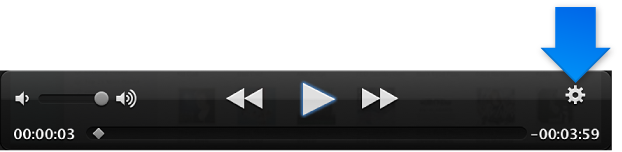
To cancel the cut, choose Reset Trim from the Action pop-up menu.