Add or remove the Apple logo

You can easily remove or add the Apple logo on the back of a book, card, or calendar.

Add or remove the Apple logo at the end of a book

The Apple logo and “Made on a Mac” text appear by default on the inside of the back cover of hardcover books, and on the back cover of softcover and wire-bound books.

  1. Click the book project in the Source list.

    The book pages appear in All Pages view.

  2. Click the Options button in the toolbar.
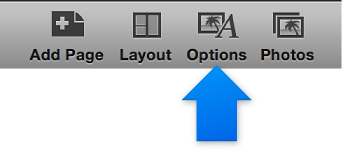
    Image of the Design button
  3. Click the Book Settings button in the Options pane.

  4. In the window that appears, select or deselect the “Include Apple logo at end of book” checkbox.
Add or remove the Apple logo on the back of a card

The Apple logo appears by default on the back of a letterpress card, and the Apple logo and “Made on a Mac” text appear by default on the back of folded and flat cards. You can easily hide or show the Apple information.

  1. Click the card project in the Source list.

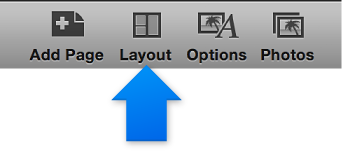
  2. Click the Layout button in the toolbar.

    Image of the Design button
  3. In the Layout pane, select or deselect the “Include Apple logo on back of card” checkbox.

    Image of the "Include Apple logo on back of card" checkbox

Add or remove the Apple logo on the back of a calendar

The Apple logo appears by default on the back cover of a calendar. You can easily hide or show the Apple information.

  1. Click the calendar project in the Source list.

  2. Click the Options button in the toolbar.

    Image of the Design button
  3. Click the Calendar Settings button in the Options pane.

  4. In the window that appears, select or deselect the “Include Apple logo on back of calendar” checkbox.
