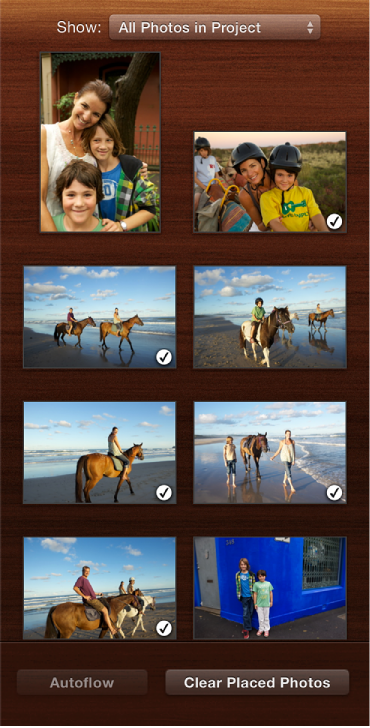

The Photo pane gives you access to the photos you want to use for a print project, such as a book, card, or calendar. When you’re placing photos in a project, you can scroll through the photo thumbnails in the photo panel, find the photo you want, and drag it to a page.
To view the Photo pane, click the Photos button in the toolbar. The Photo pane appears along the right side of the iPhoto window.
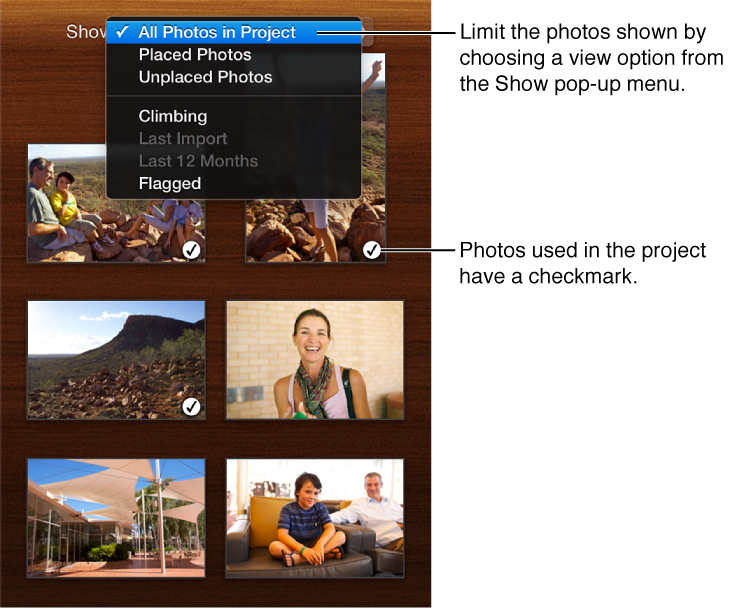
If the project you’re working on contains many photos, you can sort the photos by selecting a sort option from the Show pop-up menu.
If the photo is already used in a project, the photo is marked with a checkmark. (You can use the same photo more than once in a project.) If you position the pointer over a thumbnail with a checkmark, the thumbnail shows the page number (or numbers) where the photo is used.
To change the size of the photo thumbnail images, do one of the following:
Press the Control key, click the Photo pane, and then choose Small Photos or Large Photos from the shortcut menu.
Choose View > Photo Size, and then choose Small or Large.