
You can select part of a clip (called a range) in the browser or timeline.
Hold down the R key, and drag across the portion you want to select.
A yellow border appears around the range you selected, with trim handles on each side.
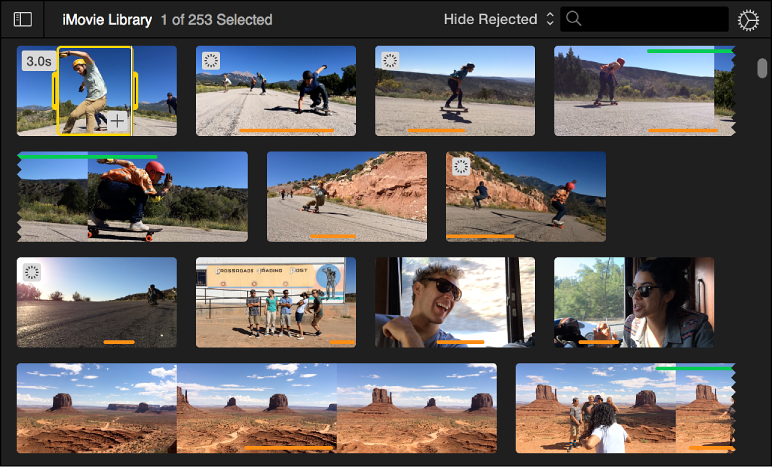
Selecting a range in the timeline is useful when you want to adjust the speed of part of a clip, trim a clip, or make a volume adjustment to part of a clip.
In the timeline, position the pointer where you want to begin the selection.
Hold down the R key, drag left or right across the clip, and release the mouse or trackpad button when you complete your selection.
When you hold down the R key, the pointer changes to the Range Selection pointer  .
.
A yellow border appears around the selection, with handles on each side.
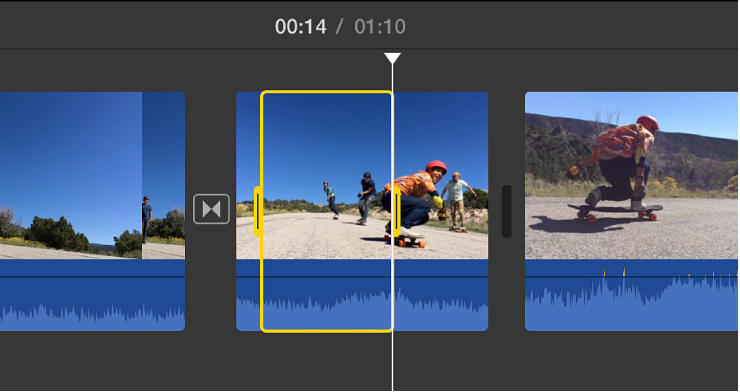
Note: You can’t select a range across clip boundaries.
Drag either of the yellow selection handles to adjust where the selection starts or ends.