
You need to select notes before you can edit them. You can select notes by clicking, Shift-clicking, dragging to make a marquee selection, and using the keyboard at the left edge of the Piano Roll Editor.
The Piano Roll Editor header shows the number of selected notes and the region name. When multiple overlapping notes are selected, the Piano Roll Editor header shows the chord name. When no notes are selected, the header shows the name of the most recently selected MIDI region, or the number of regions selected.
Select a note: Click it.
Select multiple notes: Shift-click the notes, or drag to enclose them.
Select all regions on a track: Click the track header in the Tracks area.
Click the key on the keyboard at the left edge of the Piano Roll Editor.
To select all notes for a range of pitches, Shift-click or drag over a range of keys on the keyboard.
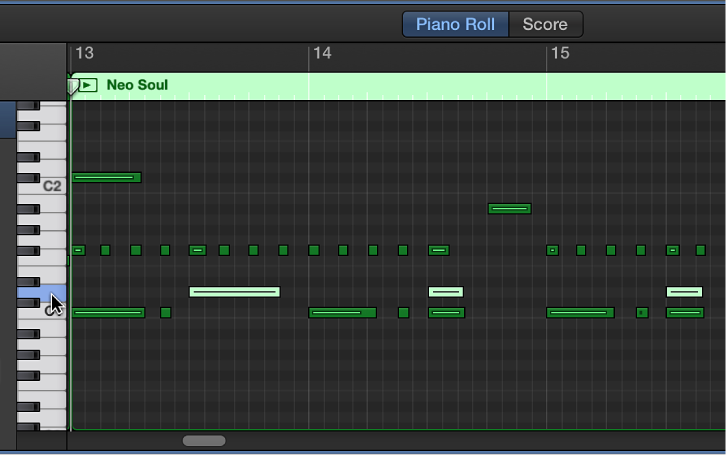
Move a note: Select a note, then drag left or right.
Move notes in finer increments: Select the notes, hold down Control, then drag the notes to the new position.
The drag resolution depends on the current zoom level.
Alternatively, you can press Control-Shift as you drag to move the notes in tick steps, overriding the grid value.
Do one of the following:
Option-drag notes to a new position.
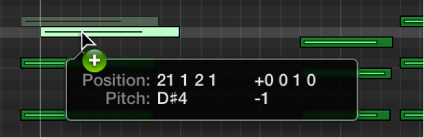
Use any of the following Clipboard commands:
Edit > Cut (or Command-X) to move notes into the Clipboard.
Edit > Copy (or Command-C) to copy notes into the Clipboard.
Edit > Paste (or Command-V) to paste notes at the current playhead position, at their original pitch.
Do one of the following:
Drag the notes up or down.
You can use the keyboard graphic on the left as a guide when dragging notes.
Select notes, then press Option–Up Arrow to raise or Option–Down Arrow to lower the pitch in semitones.
Select notes, then press Option-Shift–Up Arrow to raise or Option-Shift–Down Arrow to lower the pitch in octaves.
Drag either the left or right edge of the note horizontally, using the pointer.
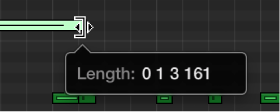
A help tag appears while you drag, showing the length of the note.
Select the notes, then drag either edge of one of the selected notes.
The relative differences between the lengths of the selected notes are maintained.
Each note in the Piano Roll Editor displays a horizontal line. The length of the line relative to the overall length of the note shows the note’s velocity. Velocity indicates how hard the key was struck when the note was played, which usually corresponds to the note’s loudness (the MIDI velocity range is from 0–127, with 127 being the loudest). Velocity can also control other synthesizer parameters, such as filter resonance or cutoff, alone or in conjunction with volume level.
Select one or more notes, then drag the Velocity slider in the Piano Roll Editor header left or right.
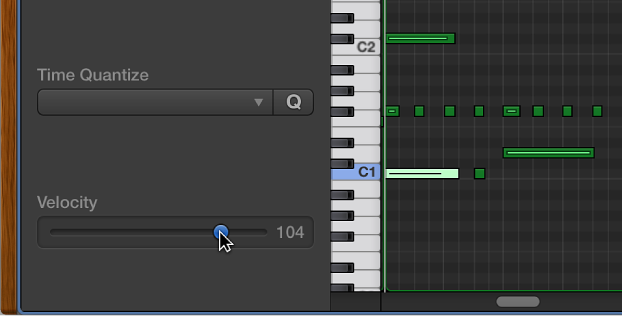
The note velocity updates in the inspector as you drag. The line inside the note also updates to show the velocity change.
When you edit the velocity of multiple notes, the relative differences in their velocity values are retained. If the velocity value of any of the selected notes reaches the minimum or maximum value (0 or 127), none of the notes can be adjusted further.
You can override this behavior by holding down Option while dragging. This technique allows you to continue altering the velocity values until the selected note reaches the minimum or maximum value. By overriding, you alter the velocity relationship of this note to the other notes.
Select the notes, then press Delete.