
GarageBand lessons include a How Did I Play feature that shows you which notes or chords you play correctly, and which notes you play incorrectly or out of time. You can use How Did I Play for the entire Play chapter of a lesson or only part of the chapter.
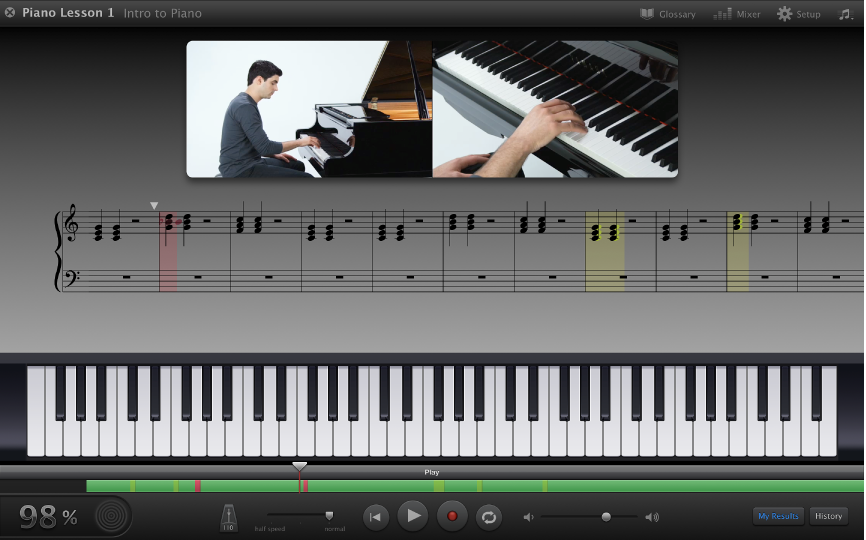
In the notation area, different colors show how you play:
Notes and chords you play correctly flash green as you play them.
Areas with wrong notes appear red. In a piano lesson, wrong notes also appear red.
Areas with notes played out of time appear yellow. In a piano lesson, out-of-time notes also appear yellow.
While you play, the row above the control bar shows areas you played correctly as green, areas with wrong notes as red, and areas with timing errors as light green.
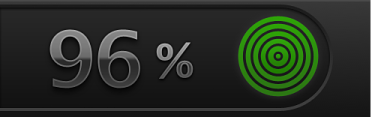
The performance meter, located in the lower-left corner of the lesson window, shows how accurately you played the last four bars: the more accurately you play, the more rings appear green in the performance meter. When you play a wrong or out-of-time note, the outer ring appears red. The number next to the performance meter shows the overall percentage of notes you played correctly in the lesson.
After you finish playing, you can review and practice any problem areas in the lesson. You can click an area in the row above the control bar to quickly review how you played in that part of the lesson, and you can hide your errors and mute your How Did I Play performance while you practice the lesson.
You can click the navigation row above the control bar, or select an area containing errors in the notation view, to practice that part of the lesson. When you click an area containing errors in the notation, the cycle region is turned on and set to a section containing the error.
Note: Before starting a performance, be sure your guitar is in tune. Out-of-tune notes or chords are considered errors. Also, if you’re playing an electric guitar, be sure the volume of the guitar is not so high as to produce clipping. Clipped notes are considered errors.
If you aren’t currently in the Play chapter, place the pointer in the left part of the video area and click Play.
Click the Record button (the red circle) in the control bar.
After the count-in, begin playing.
Click the Play button (the right-pointing triangle) in the control bar.
Do one of the following:
Click an area in the navigation row above the control bar to move to that part of the performance.

Click the notation area at the point you want to review. Red bars indicate areas with wrong notes, and yellow bars indicate areas with timing errors.
Click the My Results button in the lower-right corner of the lesson window.
Turning off My Results mutes your How Did I Play performance, and hides the errors in the notation area and the row above the control bar.
To show your errors and unmute your performance, click the My Results button again.