
In the Tempo track, tempo changes appear as tempo points. You create tempo changes by adding tempo points, then editing their values. You can move and copy tempo points, create tempo curves, and edit tempo points in other ways.
Double-click the target time position.
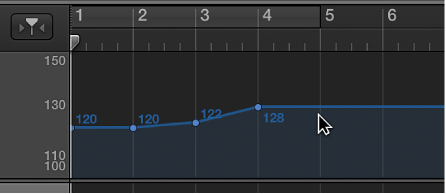
To set the tempo numerically: Hold down Control-Option-Command and click the target time position, enter the bpm value in the field that appears, then press Return.
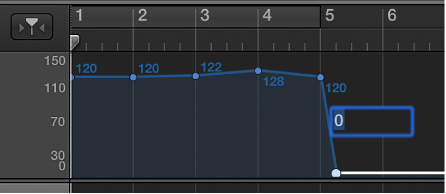
Drag the tempo point up or down. A help tag displays the tempo value.
You can also drag the line connecting two tempo points, changing the values of both tempo points.
Note: To prevent unintentional changes, tempo points are restricted to either vertical or horizontal movement. You can change either the value of a tempo change event or the position of a tempo change event, but not both at once.
Select the two tempo points.
Click and drag the tip of the right angle line (the corner) above or below the second tempo point.
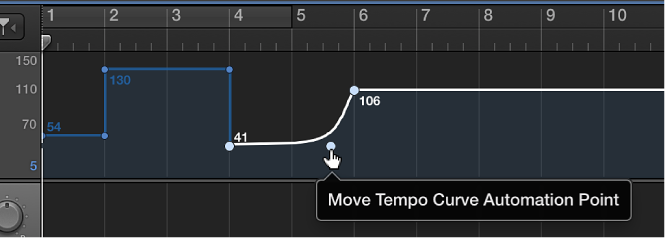
A curve or diagonal line appears, which can be dragged horizontally or vertically to alter its shape. A Move Tempo Curve help tag is shown next to the pointer.
Do one of the following:
Select the tempo point by either clicking it or the line to the right of it, then choose Edit > Delete (or press the Delete key).
Double-click the tempo point.