
When you’re recording, you can record multiple versions, or takes, in quick succession—both for audio and MIDI. Later, you can choose the take you want to use in the project.
Click the number in the upper-left corner of the take folder, then choose a take from the pop-up menu.
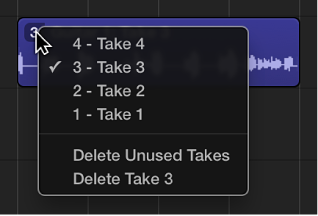
Click the number in the upper-left corner of the take folder.
Do one of the following:
Choose “Delete Take <number>” to delete the current take.
Choose Delete Unused Takes to delete all takes except the current take.