
The Compressor window has three views: Current, Active, and Completed. You can switch between these views by clicking a view button at the top of the window.
Current view is the default view in Compressor, where you prepare transcoding jobs and then submit your batch. When you open Compressor for the first time, Current view displays two basic areas:
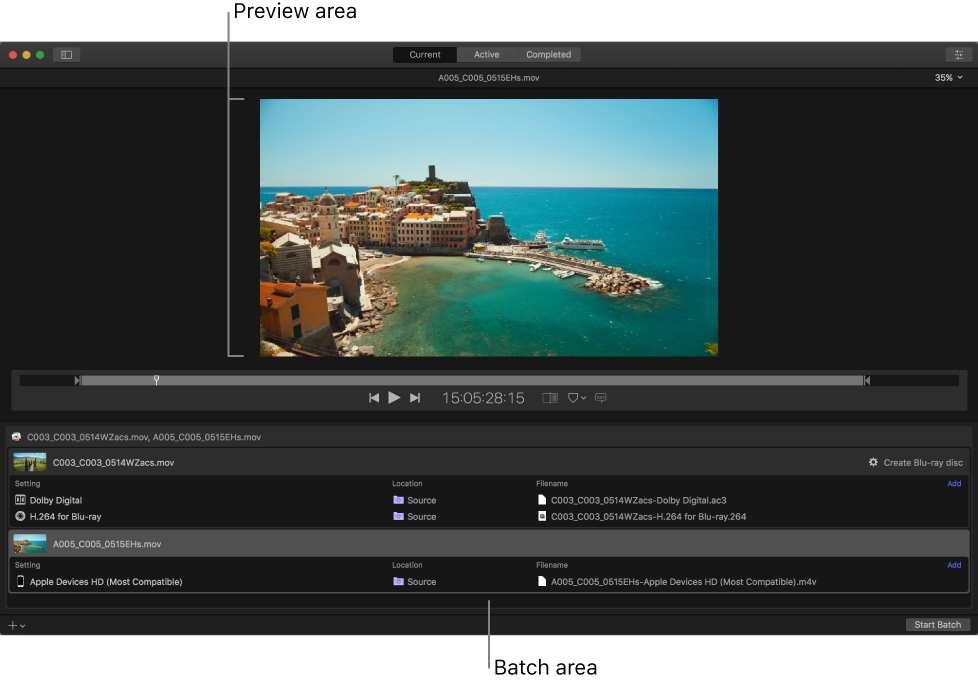
Preview area: The preview area shows how your media file will look and sound after transcoding. Here you can also add metadata and markers to be included in the transcoded file.
Batch area: The lower half of the main window displays transcoding batches that you add to Compressor. A batch is one or more transcoding jobs to be processed in a given Compressor session. A job is a source file to which you apply transcoding instructions. Each job in the batch area displays information about the source file, the job’s transcoding instructions (setting, output location, and output filename), and any post-transcoding actions that have been added (or that are part of the destination assigned to the job).
You can expand the Current view to display additional areas:
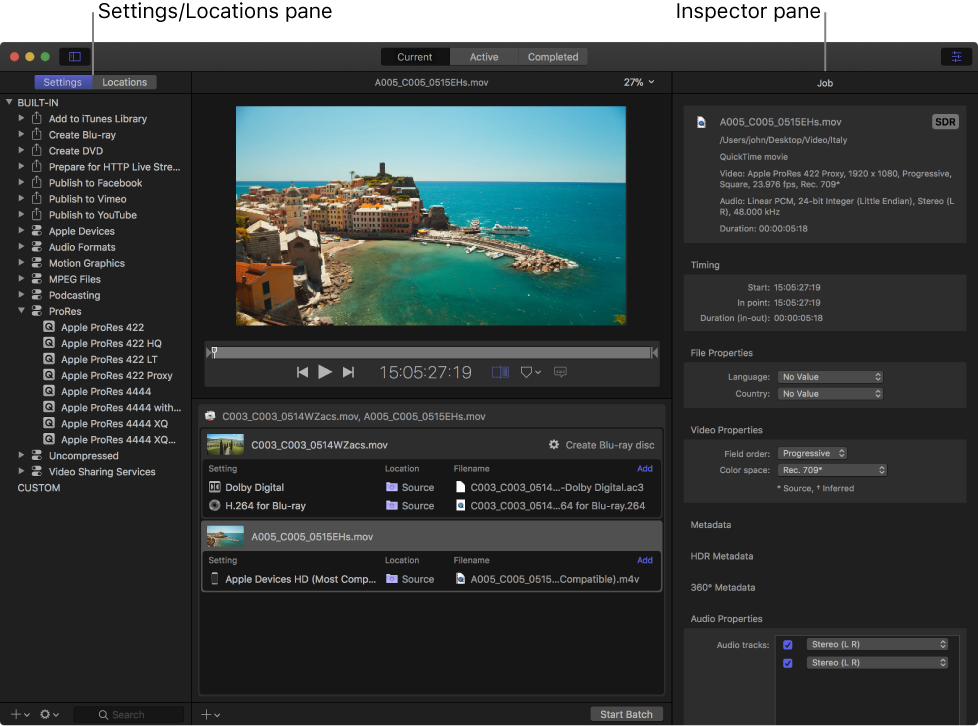
Settings and Locations pane: Click the Settings & Locations button  at the top-left corner of the Compressor window to expand this area, then click Settings or Locations to display the individual panes. The Settings pane provides quick access to all the built-in destinations and settings, as well as to any custom destinations or settings that you created. Likewise, the Locations pane provides quick access to all the built-in save locations, and to any custom save locations that you created. You apply settings, destinations, and locations to a job by dragging an item from these panes to the job in the batch area.
Inspector pane: Click the Inspector button  in the upper-right corner of the Compressor window to expand this area. The inspector pane has several views that change, depending on the item you’ve selected. When you select a batch (by clicking the background of the batch area), the Batch inspector appears, displaying basic information about the current batch. When you select a job in the batch area, the Job inspector appears; this area displays a summary of the source file’s transcoding format, an SDR or HDR badge that specifies whether the source file is a standard-dynamic-range or high-dynamic-range video, and controls for adding metadata and modifying job actions. When you select a specific transcoding instruction in the batch area (one of the rows under the job), the General, Video, and Audio inspectors appear. These three panes contain adjustable properties that you can use to customize the setting or destination.
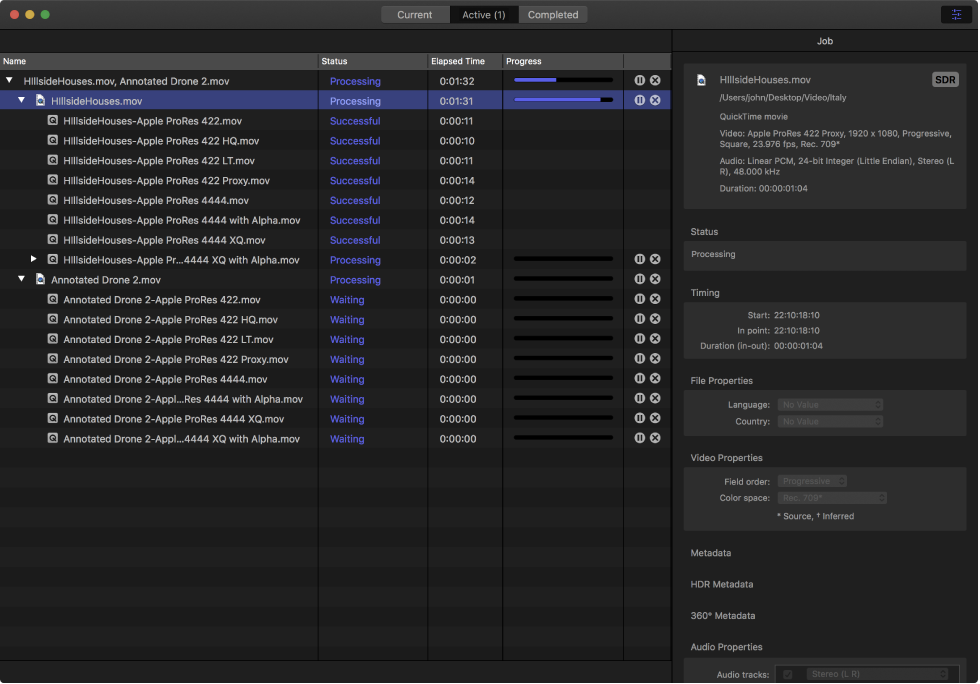
In Active view, the Compressor window displays status information about batches (and their constituent jobs) currently being transcoded. In this view, you can monitor progress bars as well as pause or cancel the transcoding process.
In Completed view, you can view information about batches and jobs that have been successfully transcoded, as well as information about items that failed to transcode.
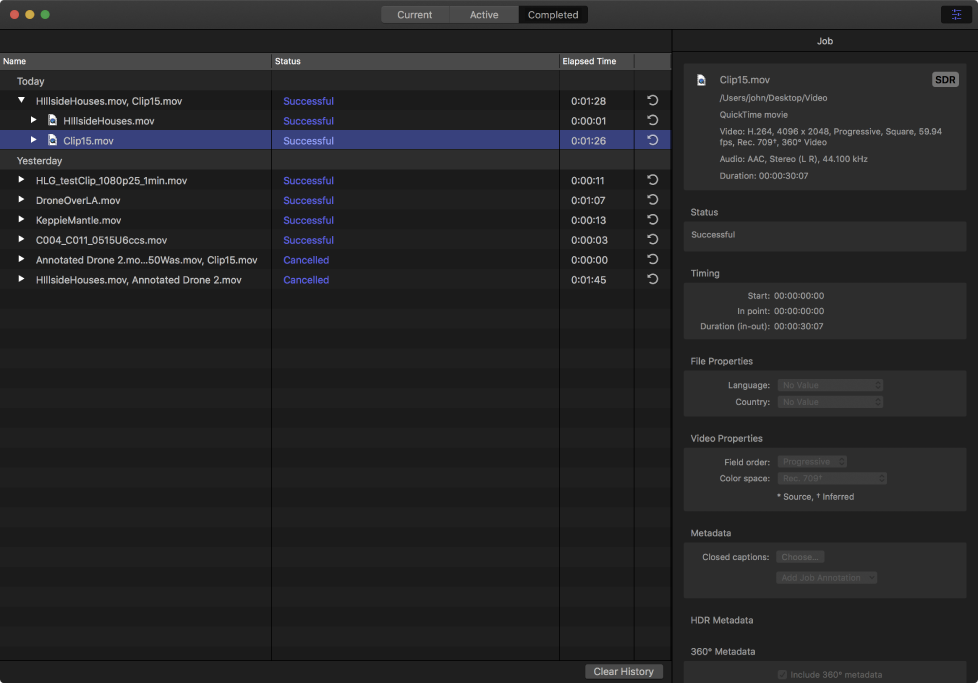
A list of batches is shown on the left side of the window. Click a disclosure triangle beside a batch to see its constituent jobs and output files. Select a batch, job, or output file in the list to see additional information in the inspector pane (on the right).
This window lists any errors or warnings that may prevent a batch from being properly processed. If you see an alert icon ( or
or  ) in the batch area, there are one or more problems with the batch. Click the alert icon (or press Command-E) to open the Errors & Warnings window.
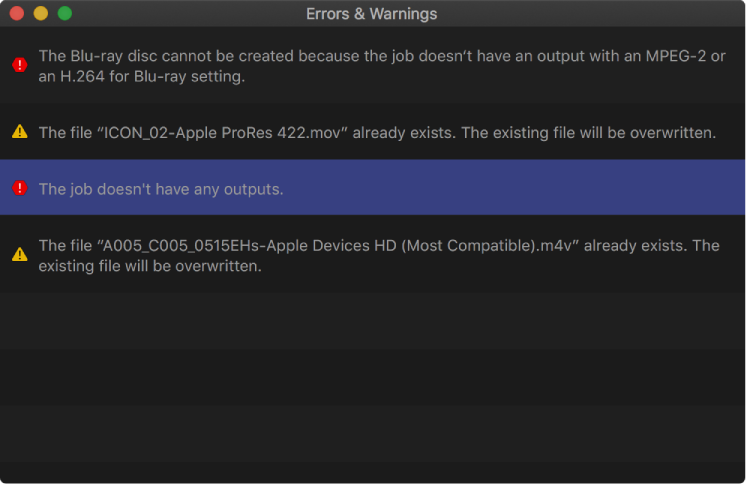
In the Errors & Warnings window, click an alert message to highlight the affected job in the batch area. Alerts showing a yellow yield sign are warnings that won’t prevent a batch from being started but may result in errors or unexpected results. Alerts showing a red stop sign  are errors that must be fixed before a batch can be started.
Note: Some errors visible in the Errors & Warnings window don’t have a corresponding alert icon in the batch area.