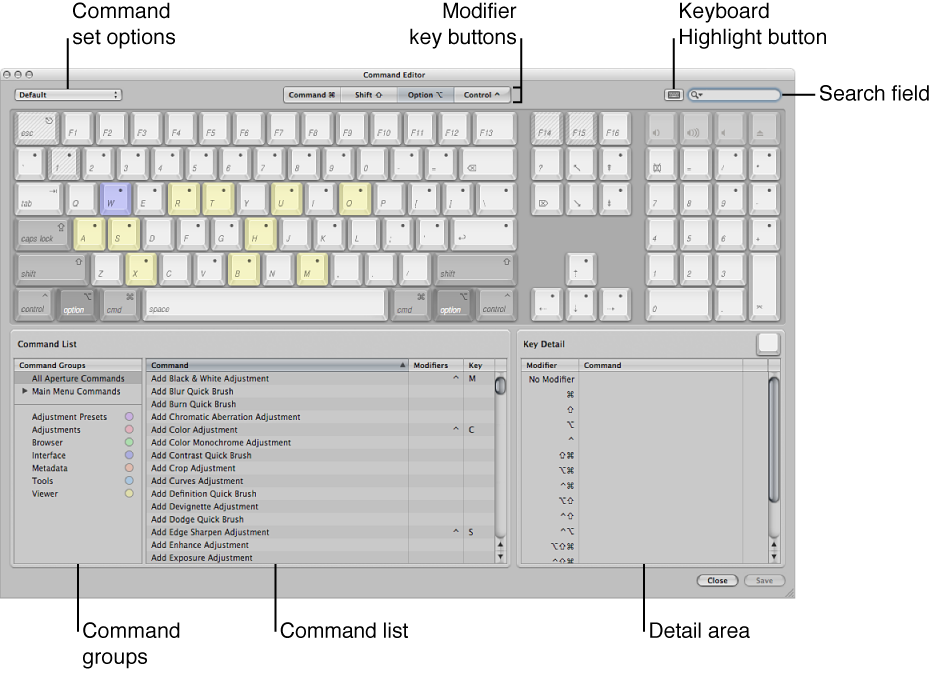

Aperture provides a wide variety of menu commands and keyboard shortcuts to control almost every aspect of your workflow. The easiest way to search, browse, or customize the various commands and keyboard shortcuts is to use the Command Editor. The Command Editor lets you:
Search for commands and view their descriptions and keyboard shortcuts.
Preview key combinations in a visual representation of the keyboard.
Modify existing keyboard shortcuts.
Create new keyboard shortcuts.
Save multiple sets of keyboard shortcuts as command sets that can be imported and exported for use by others.
Replace the default set of Aperture keyboard shortcuts with command sets from other applications.
The upper half of the Command Editor displays a virtual keyboard. The lower half contains a command list that sorts menu commands by group and offers a brief description of each command, along with its associated keyboard shortcut, if one exists.
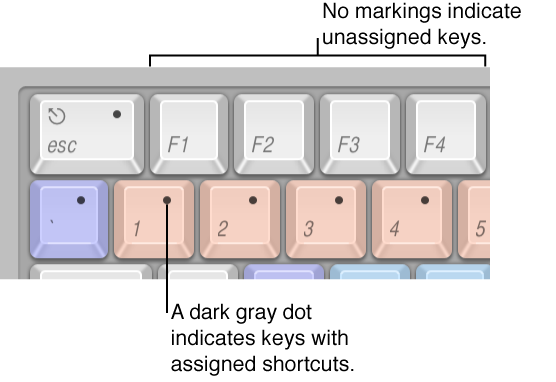
The virtual keyboard is color-coded to help you identify the type of command each key performs. The Command Groups column on the left side of the Command List area includes a clickable color key for reference.
Keys that are assigned to shortcuts are marked on the virtual keyboard with a dark gray dot, whereas unassigned keys have no additional markings. Several keys are shaded with diagonal lines, indicating that they are reserved for OS X operating system use.