Use the Adjustments inspector and Inspector HUD

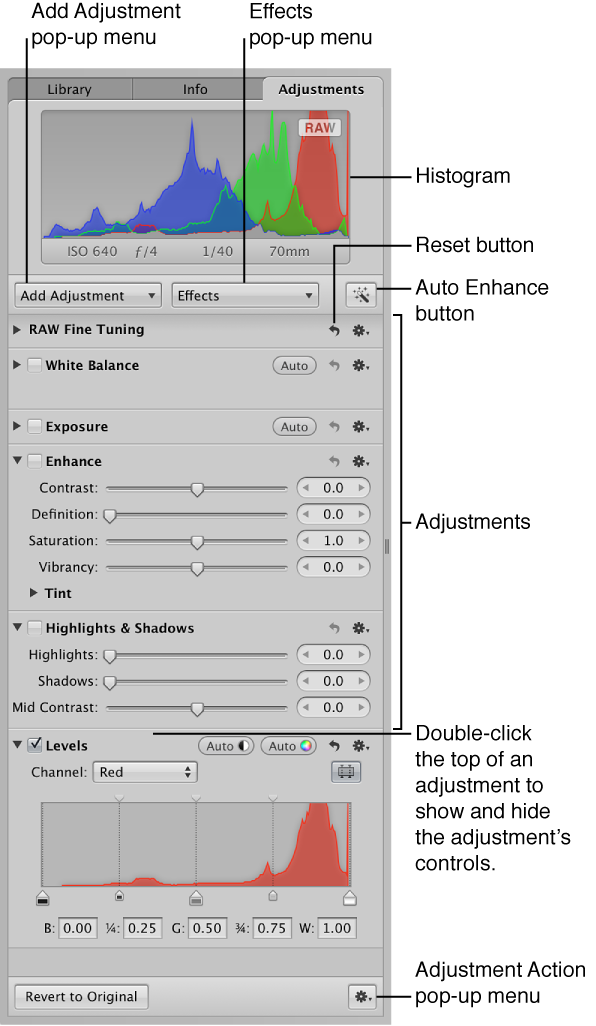
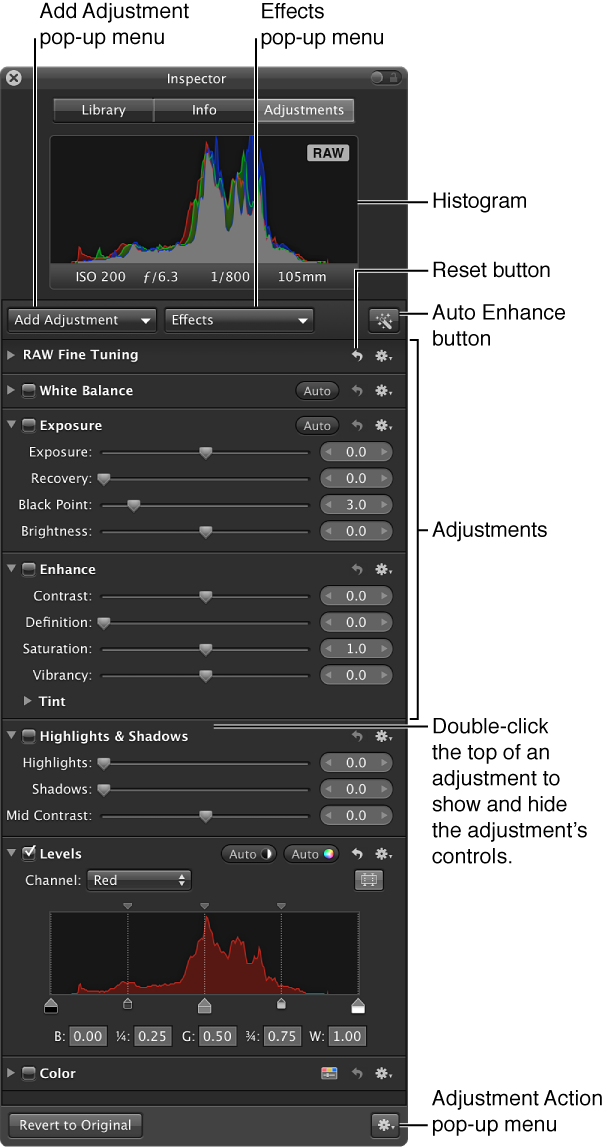
You can use menu commands, keyboard shortcuts, or the Inspector button on the left side of the toolbar to show and hide the Inspector pane containing the adjustment controls. The adjustment controls in the Adjustments inspector are also found in the Adjustments pane of the Inspector HUD. You can use menu commands and buttons in the full-screen view toolbar to show or hide the Inspector HUD.

Show the Adjustments inspector

Do one of the following:

Each adjustment contains individual properties, called parameters, for which you can specify a range of values. You click an adjustment’s disclosure triangle, or double-click the top of the adjustment, to view the parameters for the adjustment and the controls you use to change parameter values. For more information about using the adjustment controls to change parameter values, see Use sliders.
Show the Adjustments pane of the Inspector HUD

Do one of the following:

For more information, see Perform adjustments in full-screen view.

Controls in the Adjustments pane of the Inspector HUD

Note:  The adjustment controls in the Adjustments inspector and the Adjustments pane of the Inspector HUD are dimmed when an audio clip or a video clip is selected.

Choose a histogram view

When you show the Adjustments inspector or the Adjustments pane of the Inspector HUD, a histogram of the selected image’s luminance or color channels appears. The histogram displays a graph of the brightness values in the image, from the blackest point to the whitest point. You can adjust the histogram to show luminance; red, green, and blue (RGB) channels displayed together; or separate red, green, and blue channels.

Add additional adjustments

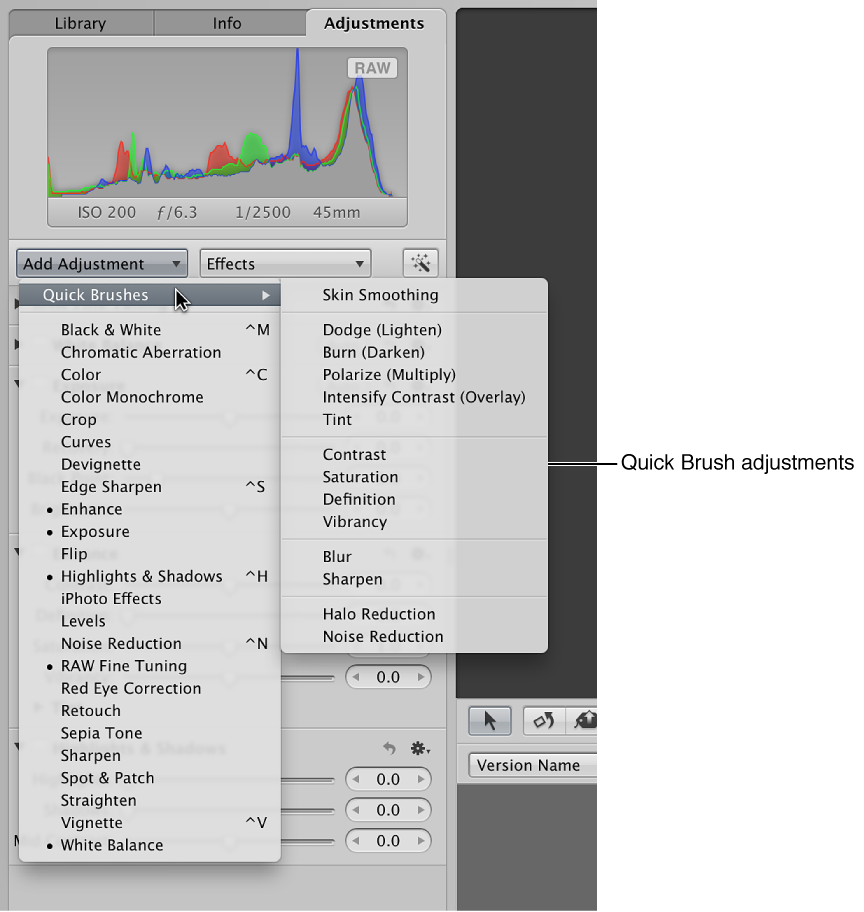
The first time you show either the Adjustments inspector or the Adjustments pane of the Inspector HUD, only the White Balance, Exposure, Enhance, and Highlights & Shadows adjustments are available.

Note:  A photo must be selected in the Browser for adjustment controls to appear in the Adjustments inspector or the Adjustments pane of the Inspector HUD.

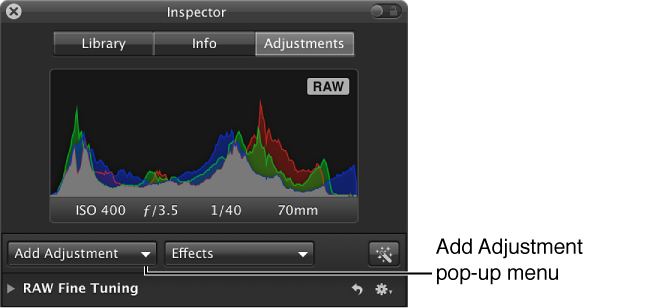
The new adjustment appears highlighted in both the Adjustments inspector and the Adjustments pane of the Inspector HUD, if both are shown. For more information about adjustment controls, see Use sliders.

Add Quick Brushes

The adjustment controls for the Quick Brush appear in both the Adjustments inspector and the Adjustments pane of the Inspector HUD, if both are shown. Also, a floating window containing the Quick Brush controls appears, and the pointer changes to a brush. For more information, see Apply Quick Brush adjustments.