View pages

As you work on a book, you can select and view particular pages, and you can change your view of the pages. You can display your pages laid out singly or side by side, and you can enlarge or reduce your view of book pages.

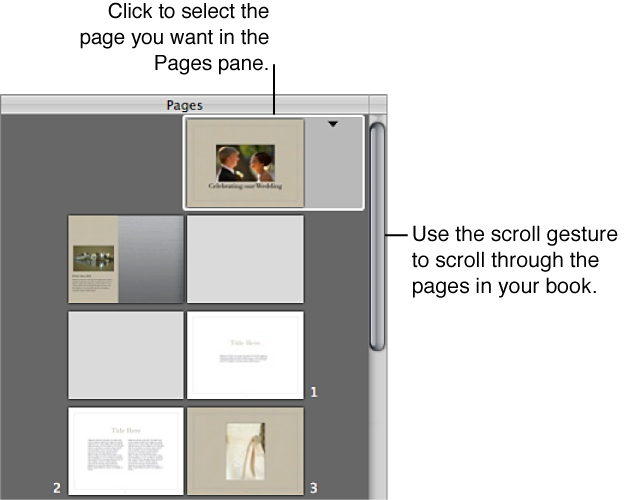
You can navigate to pages in your book by clicking a page in the Pages pane or by clicking the navigation buttons.

View a particular page in a book

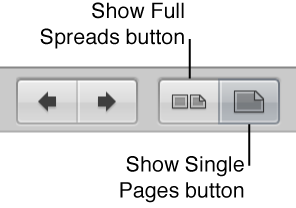
Display pages singly or side by side

You can set the Book Layout Editor to display your pages singly or side by side. For example, you can display pages side by side to see how photos work beside each other in two-page spreads.

Note:  Printing single- or double-sided pages is a function of your printer and the options available in the printer’s Print dialog. If you’re purchasing printed books from the Apple print vendor, your book is automatically printed double-sided.

Resize the page view

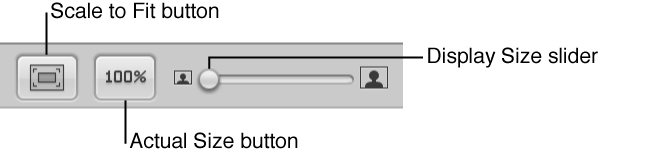
You can reduce or enlarge the view of your book pages in the Book Layout Editor. For example, you might enlarge the display of your pages to closely inspect details, or reduce the view to get an overview of the general page composition.

Figure. Page display controls in the Book Layout Editor.

Do any of the following: