Have Aperture “autoflow” unplaced photos
Using the Autoflow feature, you can have Aperture automatically place your photos in a book. It’s a good idea to set up the page structure of your document first by creating the number of pages needed and assigning master page layouts. Then arrange your photos in the Browser in the order in which they should appear in the book and let Aperture place the photos into the structure you created.
You can place all of the unplaced photos in your book at once, or you can select specific photos and have Aperture distribute them into any empty pages. For example, you might select several photos and have Aperture place them into the first several pages of your book, and then select several more photos and have Aperture place them on the following pages.
If you prefer, you can have Aperture create as many pages as necessary to hold all of your photos and place them on the pages. Aperture creates new pages using master page designs from the selected theme and fills those pages with your photos. You can then change the master page assignments if you wish.
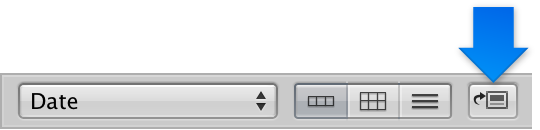
To have Aperture “autoflow” unplaced photos: Choose Autoflow Unplaced Images from the Book Action pop-up menu
 in the Book Layout Editor.
Aperture distributes the unplaced photos beginning with the first empty photo box. If there are more unplaced photos than your current page structure can hold, Aperture creates new pages as necessary.
To have Aperture “autoflow” selected photos: In the Browser, select the photos you want to place in the book, and then choose Autoflow Selected Images from the Book Action pop-up menu
in the Book Layout Editor.Aperture distritbutes the selected photos beginning with the first empty photo box. If you selected more photos than your current page structure can hold, Aperture creates new pages as necessary.