After you’ve assigned names to the people in a few of your photos, you can review suggested photos of the same people.
Enter Faces view
Do one of the following:
In the Library inspector, select Faces.
The main window switches to Faces view, displaying snapshots of each named person in the entire library.
In the Library inspector, select an item, then click the Faces button in the toolbar.
The main window switches to Faces view, displaying snapshots of each named person in the currently selected item in the Library inspector.
Set a photo as the key photo for a snapshot
When you enter Faces view, a snapshot of each person you named in the Aperture library appears. You can quickly view the confirmed photos of a person by skimming over the snapshot with the pointer. You can also choose your favorite photo of the person to represent the snapshot, also known as the key photo.
Skim over the snapshot with the pointer.
When you find your favorite photo of that person, do one of the following:
Press the Space bar.
Control-click the photo, then choose Make Key Photo from the shortcut menu.
View all the photos of a specific person
Do one of the following:
In Faces view, double-click the person’s snapshot.
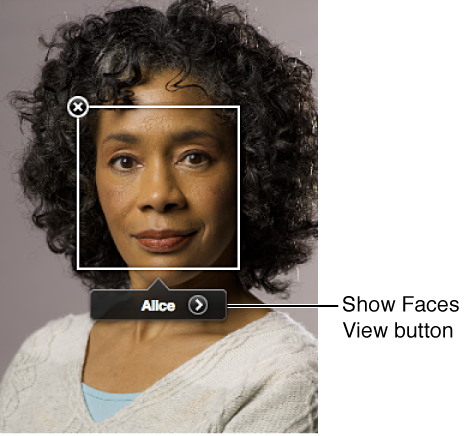
Click the Name button in the toolbar, then click the Show Faces View button in the face label below the person’s face in the Viewer.
The Faces browser appears, showing all the confirmed photos of the person.
Confirm photos of a person
When you first open the Faces browser after assigning a name to a new face, Aperture displays all the suggested photos for that person in the bottom half of the Faces browser.
At the bottom of the Faces browser, click the Confirm Faces button.
A “click to confirm” overlay appears at the bottom of each suggested photo.
To confirm a face as a match, do one of the following:
To confirm the face in a single photo: Click the photo.
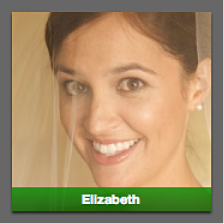
The person’s name appears below the photo.
To confirm the face in multiple suggested photos: Shift-click the photos.
The person’s name appears below each photo.
To reject a photo as a match, do one of the following:
Click the photo, then click it again to reject it.
Option-click the photo.
“Not [name of face]” appears below the photo.
When you’ve finished confirming photos, click Done.
Confirmed photos move to the top of the Faces browser.
Note: As you confirm or reject the face of the person appearing in each photo, you can have Aperture suggest additional photos by pressing the Option key and clicking the Update button. When you press the Option key, the Done button changes to the Update button. Clicking the Update button also saves any confirm and reject decisions you’ve already made.
Customize the Faces browser
As the number of confirmed photos of a person grows, it can be difficult to identify a person’s face in a small thumbnail image. To make it easier to identify a person’s face in a photo, you can either make the thumbnail images larger or switch from showing whole photos to showing only faces.
To show whole photos: In the Faces browser, click the Photos button.
The thumbnail images in the Faces browser return to displaying whole photos.
To show faces only: In the Faces browser, click the Faces button.
Each thumbnail image in the Faces browser is cropped to show only the person’s face.
To make the thumbnail images larger: In the Faces browser, drag the Thumbnail Resize slider to the right.
To return to Faces view: Click the All Faces button at the top of the Faces browser.