After you’ve rated your photos, you can sort photos according to a specific rating. For example, after an initial rating pass, you can choose to show only those photos rated Select, with five stars. You can then closely inspect and further refine your selection or begin making image adjustments. You can sort photos by rating using either the pop-up menu in the Browser’s search field or the Rating controls in the Filter HUD.
Note: Original image files are not deleted when sorted by rating. They are only temporarily removed from view.
For more information on using the Browser’s search field to sort photos by rating, see Searching overview.
Show the Filter HUD by doing one of the following:
Choose Edit > Find (or press Command-F).
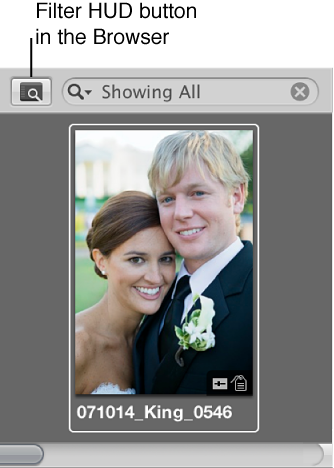
In the Browser, click the Filter HUD button next to the search field.
Select the Rating checkbox.
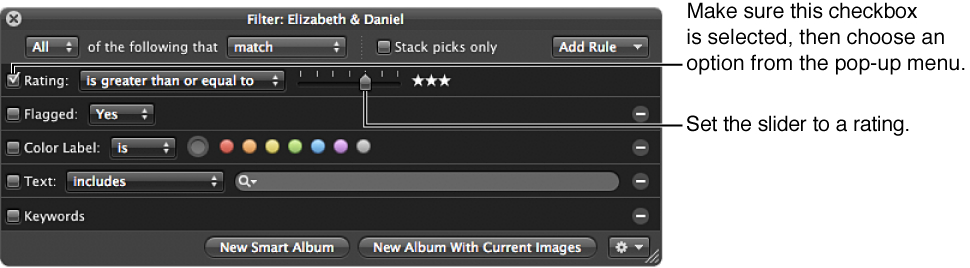
Choose an option from the Rating pop-up menu.
To show photos with a specific rating only: Choose “is.”
To show photos with a specific rating or better: Choose “is greater than or equal to.”
To show photos with a specific rating or worse: Choose “is less than or equal to.”
Drag the Rating slider to specify a rating.
The Browser instantly displays only photos that meet the specified rating criteria.
Do one of the following:
Deselect the Rating checkbox in the Filter HUD.
Press Control-6.
Press Control–Grave Accent (`).
Press Control-8.