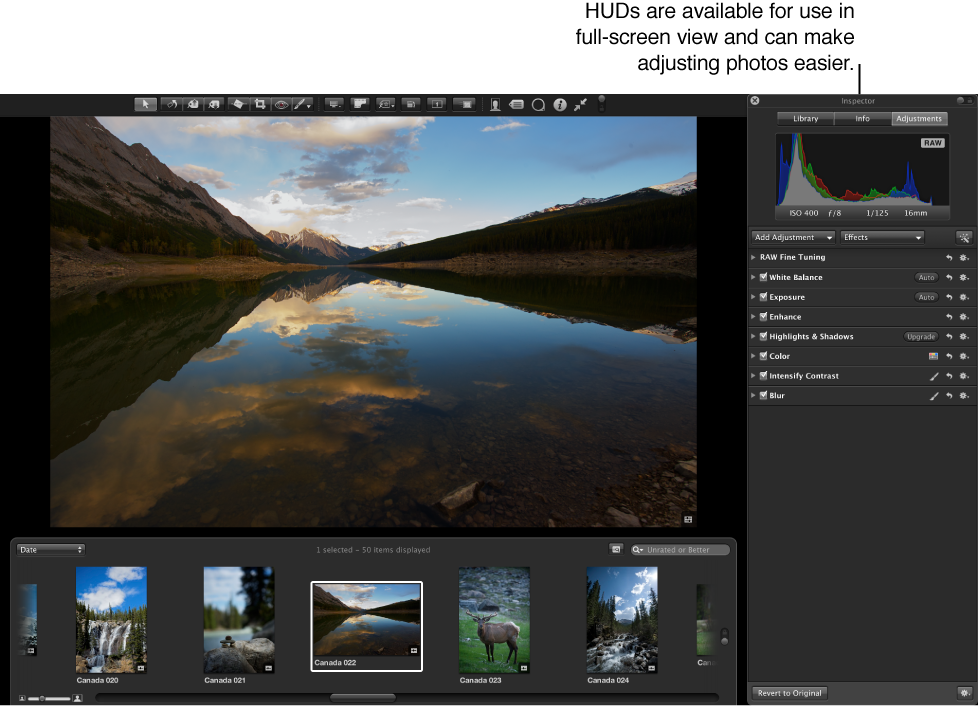

You can use these HUDs to work with your photos in full-screen view:
Keywords HUD: Create and organize keywords and add keywords to your photos.
Inspector HUD: Navigate through the library, modify metadata in your photos, and perform adjustments.
Tool HUDS: Use any of the adjustment tools that work in conjunction with HUDs.
Do one of the following:
Click the Keywords HUD button in the toolbar.
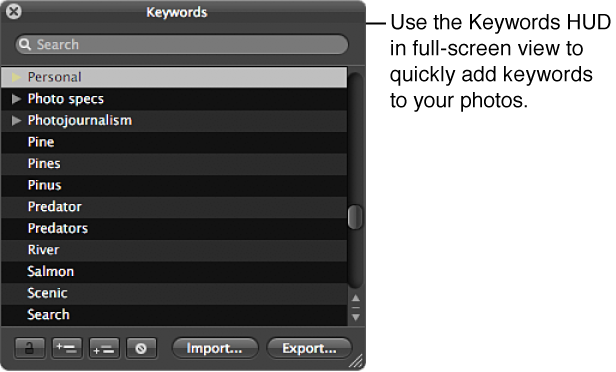
Press Shift-H.
For more information, see Apply keywords using the Keywords HUD.
Press H.
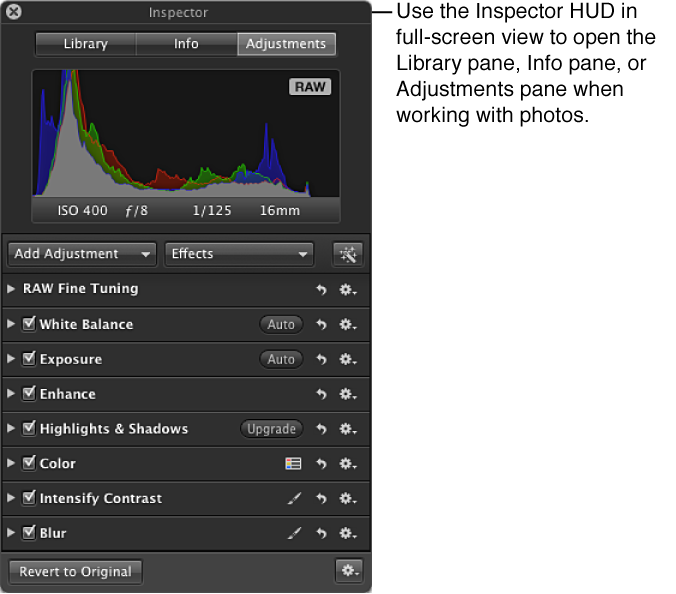
Tip: To temporarily hide the Inspector HUD while performing an image adjustment, so that you have an unobstructed view of your photo, hold down the Shift key while dragging a slider in the Adjustments pane. When you release the Shift key, the Inspector HUD reappears.
Show the full-screen view toolbar by moving your pointer to the top of the screen on your main display.
Select an adjustment tool in the toolbar, or choose a Quick Brush adjustment from the Quick Brush pop-up menu  .
.
If the tool you selected has a HUD, that HUD appears.
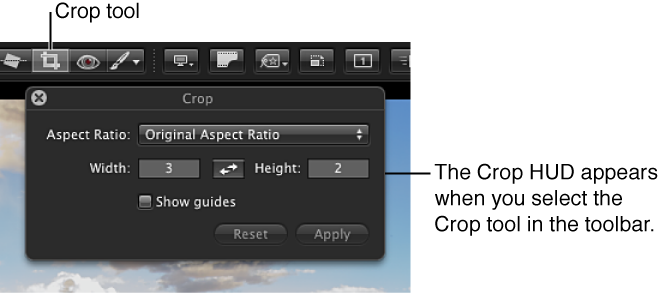
To hide the HUD for an adjustment tool, select the Selection tool in the toolbar.