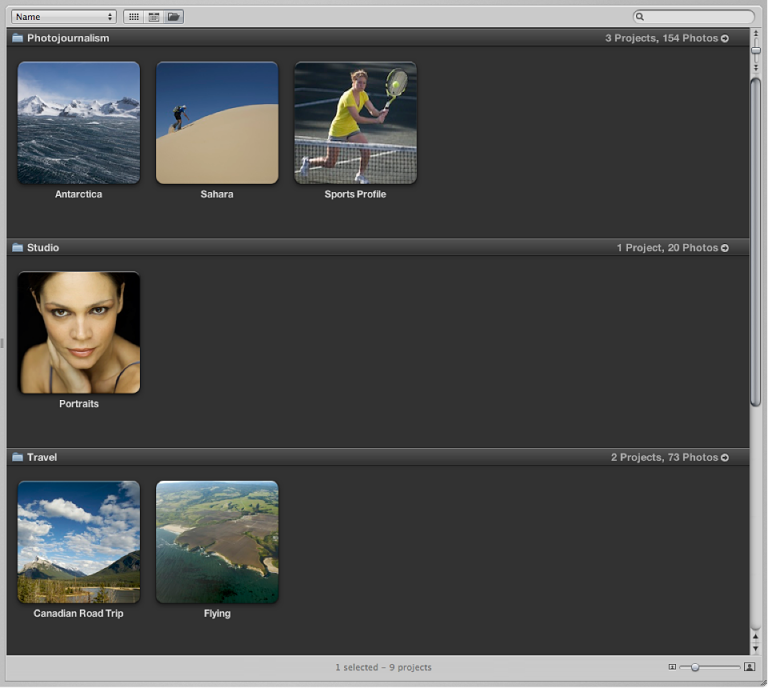

You can organize your projects by the year the photos were created. If you organize your projects in folders in the Library inspector, you can group your projects by the folders they reside in. You can sort projects by name, in ascending and descending order, and in the order in which the projects appear from top to bottom in the Library inspector. If you have a large number of projects in your library, you can search for a specific project, removing the others from view.
If you have more than one project documenting the same subject and you want to consolidate the projects into a single project, you can merge the projects.
To group projects by year: Click the Group by Year button  at the top of Projects view.
To group projects by folder: Click the Group by Folder button  at the top of Projects view.
When you group projects by year or by folder, the number of projects and photos for each year or folder is displayed in the top-right corner of each group’s row. Click the adjacent arrow button to display projects for a single year or folder only.
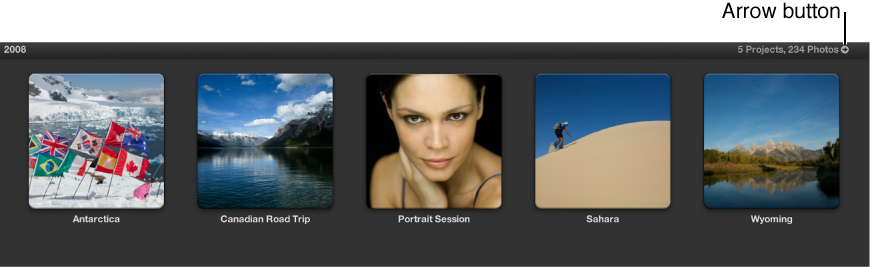
To return to full display of projects for all years or folders, click the Projects button at the top of the main window in Projects view.
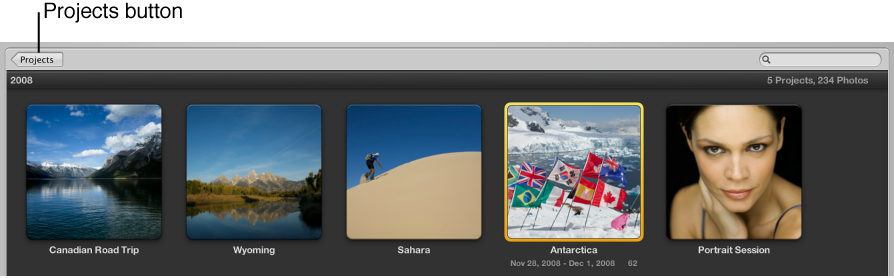
To sort projects by name: Choose Name from the Sorting pop-up menu in the top-left corner of Projects view.
To sort projects in ascending order by the date the photos were captured: Choose Date – Newest First from the Sorting pop-up menu.
To sort projects in descending order by the date the photos were captured: Choose Date – Oldest First from the Sorting pop-up menu.
To sort projects by the order in which they appear in the Library inspector: Choose Library from the Sorting pop-up menu.
Choose Manual from the Sorting pop-up menu in the top-left corner of Projects view.
In the Browser, select a project and drag it to a new position.
A green line indicates the project’s new position.
In Projects view, enter the name of the project you want to locate in the search field.
All projects are removed from view except for the project or projects matching the name in the search field. To display all projects again, click the Reset button (with an X) in the search field.