Add music and audio to slideshows

You can add music and audio to your slideshow in two ways:

Add an audio clip to the main audio track in your slideshow

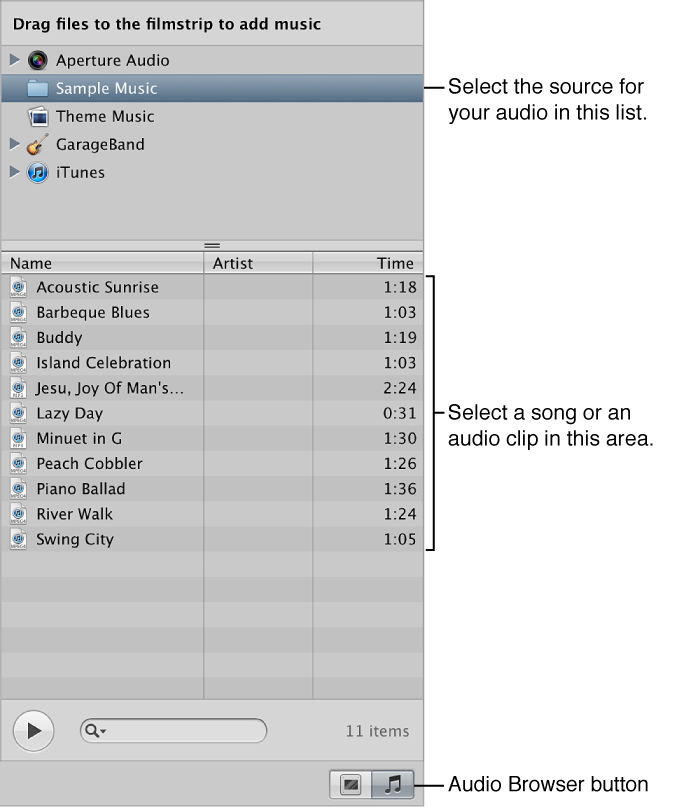
You can use the Audio browser to access DRM-free audio files from a variety of sources, including the Sample Music folder, the Theme Music folder, GarageBand, or your iTunes music library. You can also use any audio file imported into the Aperture library.

  1. Select a slideshow album in the Library inspector.

  2. If the Audio browser controls are not shown in the Slideshow Editor, click the Audio Browser button .

  3. In the Audio browser, select the source for your audio, and then select a song or an audio clip.

    Figure. Audio browser controls in the Slideshow Editor.
  4. If you wish, preview the audio by clicking the Play button .

  5. Drag the selected song or audio clip to the Browser’s background.

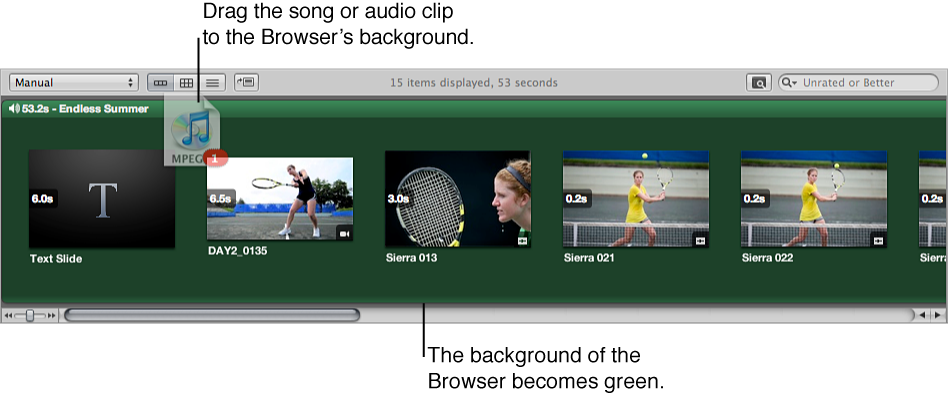
    The background of the Browser turns green, indicating that the selected song or audio clip is applied to the slideshow’s main audio track. The main audio track clip always starts at the beginning of the slideshow. When there is more than one clip in the main audio track, the audio clips are placed back to back, with no gaps.

    Figure. Audio clip being dragged to the Browser timeline and the background of the Browser appearing green.
  6. If the audio clip in the main audio track is not long enough, drag another audio clip from the Audio browser to the point in the Browser where the previous audio clip ended.

The main audio track is extended by the duration of the second audio clip.

To remove an audio clip from the main audio track, select the audio clip and press the Delete key.

Add an audio clip to the secondary audio track in your slideshow

  1. Select a slideshow album in the Library inspector.

  2. If the Audio browser controls are not shown in the Slideshow Editor, click the Audio Browser button .

  3. In the Audio browser, select the source for your audio, and then select a song or an audio clip.

    Figure. Audio browser controls in the Slideshow Editor.
  4. If you wish, preview the audio by clicking the Play button .

  5. Drag the selected song or audio clip to the specific slide in the Browser where you want the audio to begin.

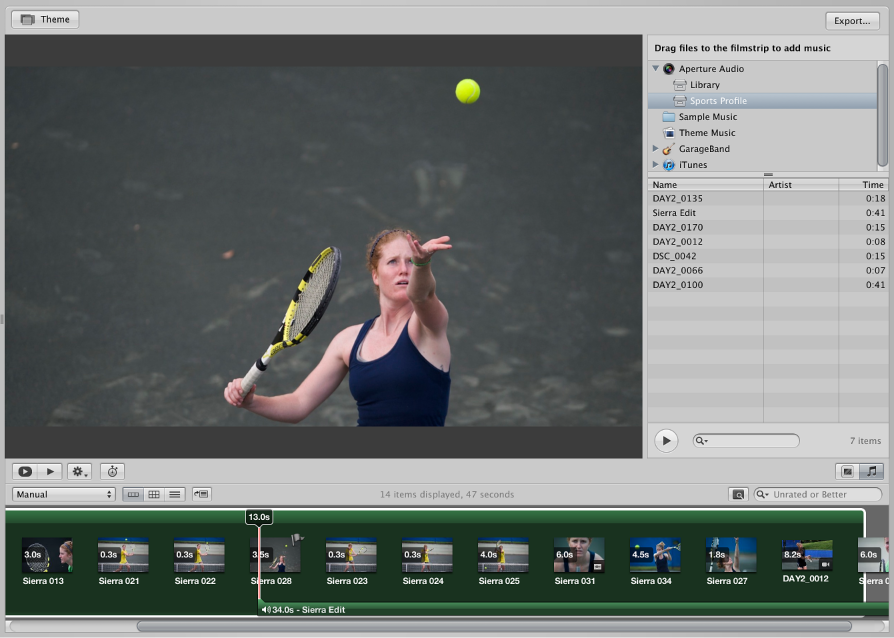
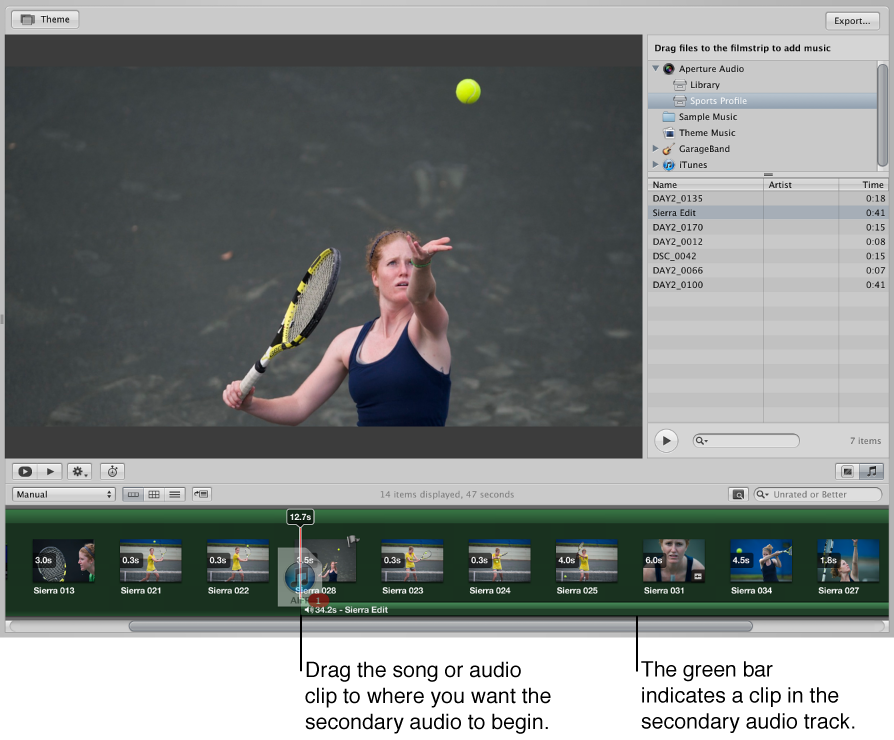
    A green bar appears at the bottom of the Browser to indicate that the audio clip has been added to the secondary audio track. When the playhead reaches the secondary audio track, the audio clip in that track plays over any audio clip in the main audio track.

    Figure. Audio clip being dragged to the Browser timeline and a green bar appearing below thumbnail images to indicate a clip in the secondary audio track.
  6. To add additional audio clips to the secondary audio track, repeat steps 3 through 5.

To remove an audio clip from the secondary audio track, select the audio clip and press the Delete key.

Trim or move an audio clip in the secondary audio track

  1. Select a slideshow album in the Library inspector.

  2. Do one of the following

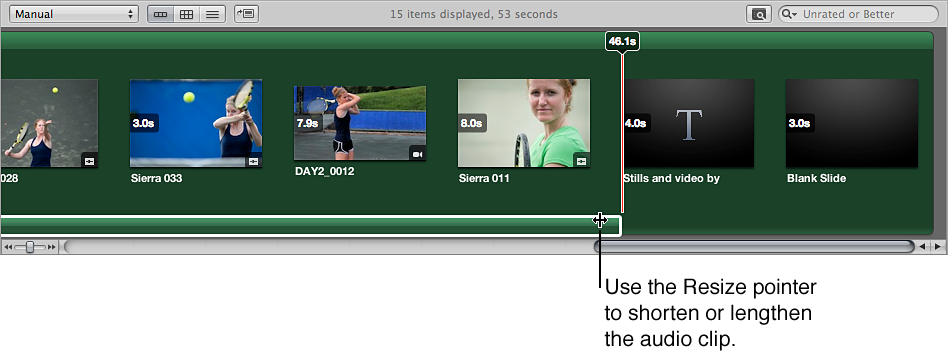
    • To trim an audio clip in the secondary audio track: In the Browser, click the right edge of the audio clip, and drag to the left or right to shorten or lengthen it.

      The pointer changes to a Resize pointer, indicating that you can change the clip duration.

      Figure. Browser showing the Resize pointer being used to change the duration of the audio clip.
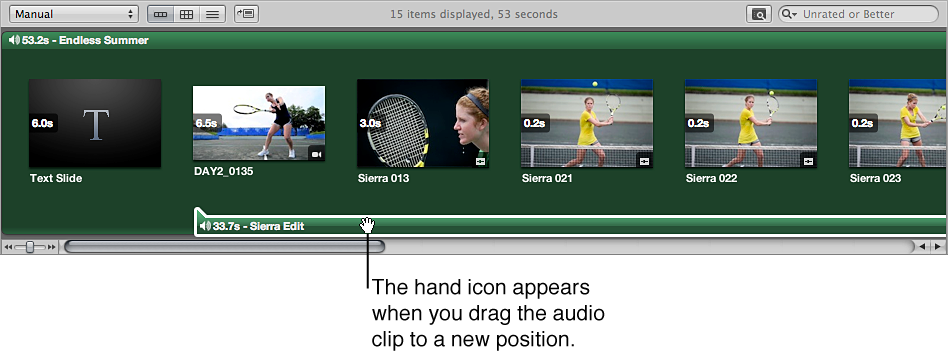
    • To move an audio clip in the secondary audio track: Drag the audio clip to a new position in the Browser timeline.

      The pointer changes to a hand, indicating that you can drag the audio clip.

      Figure. Browser showing a clip in the secondary audio track being dragged to a new position.

Add a fade-in or fade-out to an audio clip in the secondary audio track

  1. Select a slideshow album in the Library inspector.

  2. In the Browser, select the clip in the secondary audio track to which you want to apply a fade-in.

  3. Do one of the following:

    • Choose Adjust Audio from the Slideshow Action pop-up menu .

    • In the Browser, double-click the audio clip.

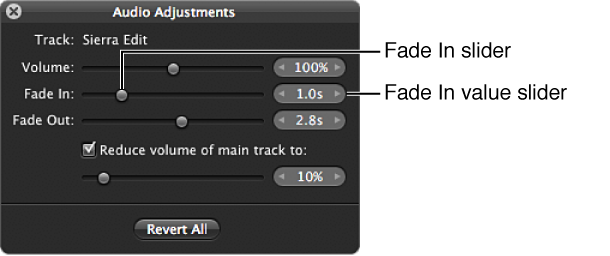
  4. In the Audio Adjustments HUD, drag the Fade In or Fade Out slider to change the duration of the fade-in or fade-out.

    You can also click the left or right arrow in the value slider, or drag in the value field.

    Figure. Fade In controls in the Audio Adjustments HUD.

    A setting of 0.0s turns off the fade-in or fade-out.

To reset any audio adjustments that you’ve made, click the Revert All button.

Adjust the volume of clips in the main audio track while a clip in the secondary audio track is playing

  1. Select a slideshow album in the Library inspector.

  2. In the Browser, select a clip in the secondary audio track.

  3. Do one of the following:

    • Choose Adjust Audio from the Slideshow Action pop-up menu .

    • In the Browser, double-click the audio clip.

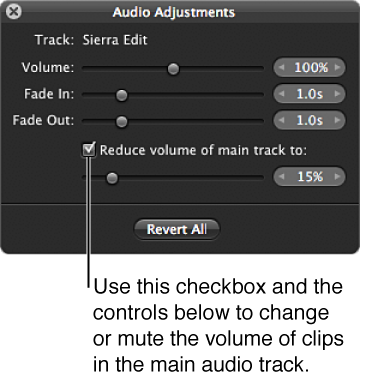
  4. In the Audio Adjustments HUD, select the “Reduce volume of main track to” checkbox, and drag the slider to the left to decrease the volume, or to the right to increase it.

    You can also click the left or right arrow in the value slider, or drag in the value field.

    Figure. Controls in the Audio Adjustments HUD for reducing volume of clips in the main audio track.

    A setting of 0% mutes the main audio track.

To reset any audio adjustments you’ve made, click the Revert All button.

Fit the slideshow to the duration of the main audio track

You can set the slideshow to fit the duration of the main audio track. However, you need to make sure that the audio clips you apply to the main audio track are long enough to play each slide.

Align the slides to the beat of the music